Content
Secure Login with CAPTCHA Verification
Member App — CAPTCHA Verification
Professional App — CAPTCHA Verification
Show or Hide Password Using the Eye Icon
How to Recover Your User ID?
Member App — Forgot User ID
Professional App — Forgot User ID
How to Reset Your Password?
Member App — Forgot Password
How to Reset Your Password in the Member App?
Professional App — Forgot Password
The Entire OnHire Member App and Professional App provide security features to help protect your user accounts and support secure access. These features include CAPTCHA verification after multiple failed login attempts, the option to show or hide the password during login, User ID recovery, and Password reset.
This article explains how to use these features in the Member App and Professional App.
Secure Login with CAPTCHA Verification
CAPTCHA verification is required after multiple failed login attempts to enhance security and help protect against brute-force attacks. It helps distinguish genuine users from automated attempts to access an account.
CAPTCHA verification is triggered after the third failed login attempt and is displayed on the login screens of the Member App and Professional App.
Member App — CAPTCHA Verification
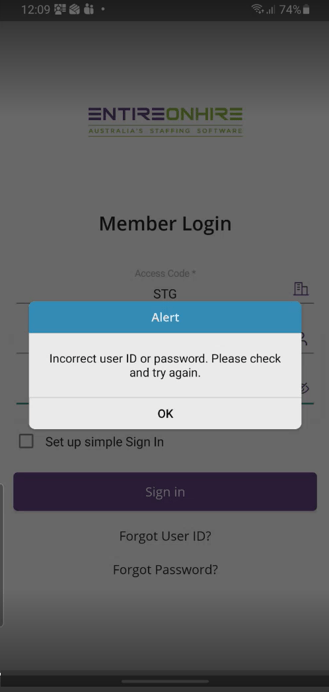
When you attempt to log in with invalid credentials, the system displays a message, 'Incorrect User ID or Password. Please check and try again' indicating that the User ID or Password entered is incorrect.
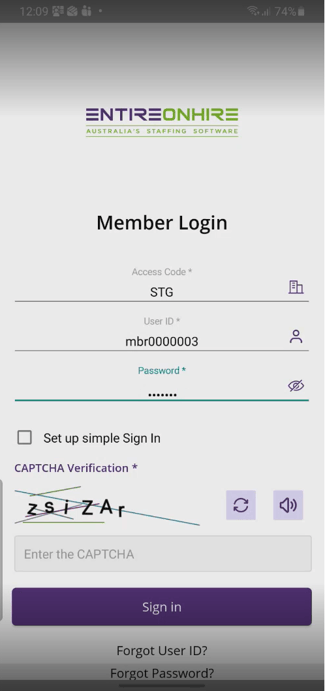
The system tracks consecutive failed login attempts. After the third unsuccessful attempt, CAPTCHA verification is required to confirm that you are not a robot before you can continue logging in. This provides an additional layer of security to help protect your account.
Enter the correct login credentials (User ID, Password) and CAPTCHA. You can use the audio option to hear the CAPTCHA text or click the refresh icon to generate a new CAPTCHA, as shown in the figure below.
 |
|
Professional App — CAPTCHA Verification
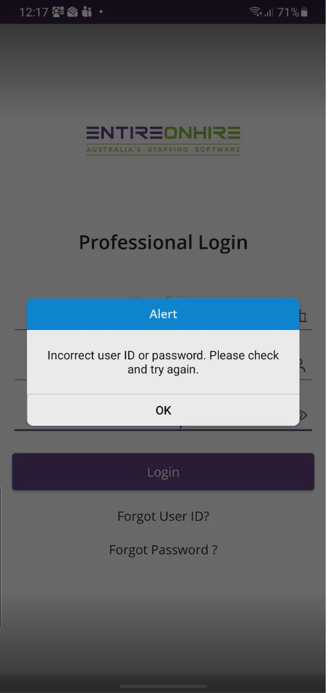
When you attempt to log in with invalid credentials, the system displays the message, 'Incorrect User ID or Password. Please check and try again', indicating that the User ID or Password entered is incorrect.
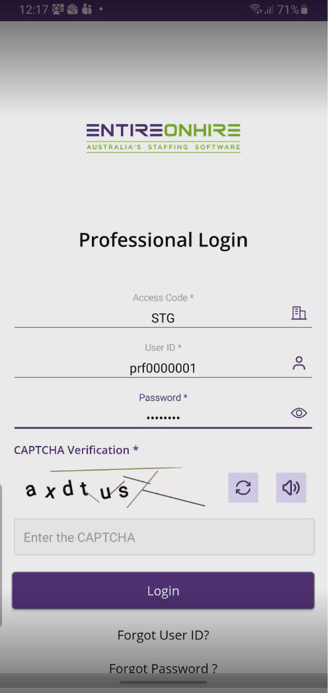
The system tracks consecutive failed login attempts. After the third unsuccessful attempt, CAPTCHA verification is required before you can continue logging in.
Enter the correct login credentials (User ID, Password) and CAPTCHA. You can use the audio option to hear the CAPTCHA text or click the refresh icon to generate a new CAPTCHA, as shown in the figure below.
 |
|
Show or Hide Password Using the Eye Icon
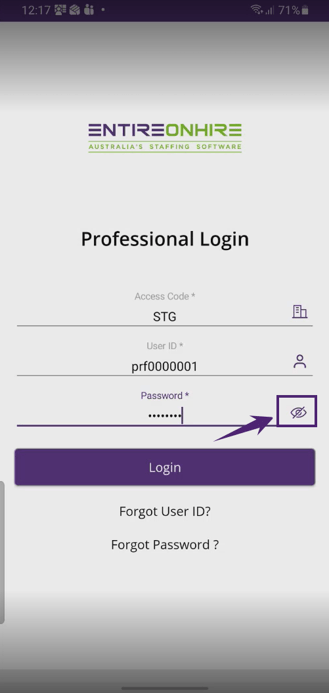
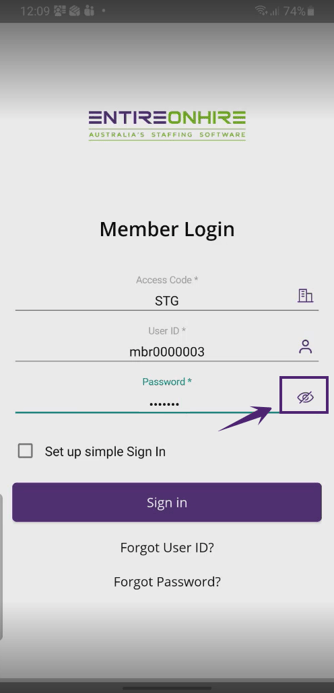
A new eye icon is available on the login screen, allowing you to show or hide the password entered in the Password field.
How it works:
- Click the eye icon to show the entered password.
- Click the eye icon again to hide the password.
 |
 |
How to Recover Your User ID?
The Entire OnHire Apps provide a secure way to recover your User ID if you forget it. You can request your User ID using the Forgot User ID? option on the login screen and verify your identity using your Access Code and registered email address.
This feature is available in the Member App and Professional App.
Member App — Forgot User ID
To recover your User ID:
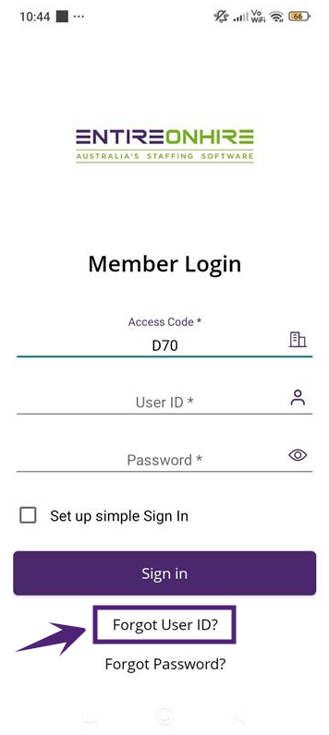
- Click Forgot User ID? on the login screen.
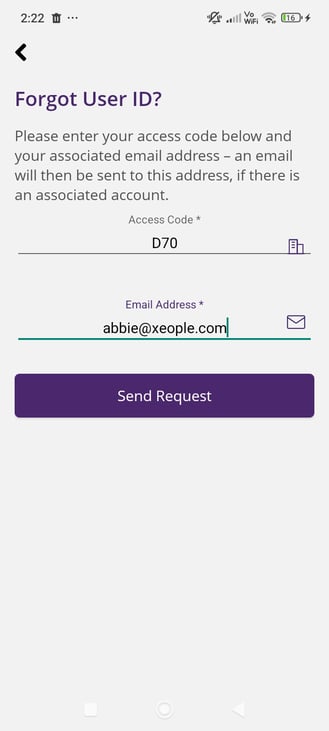
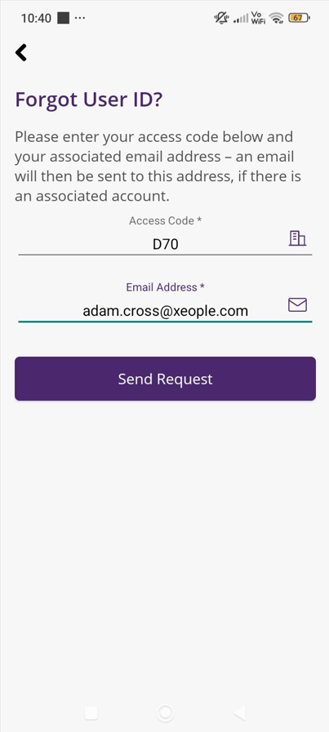
- A Forgot User ID screen appears, prompting you to enter the Access Code and your registered Email Address.
- Enter the Access Code and your registered Email Address.
- Click Send Request.
 |
 |
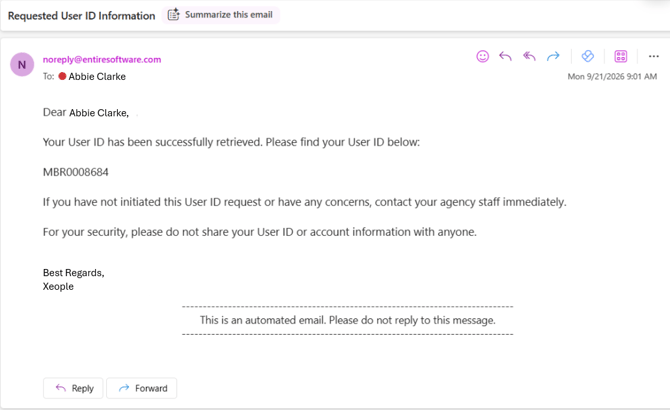
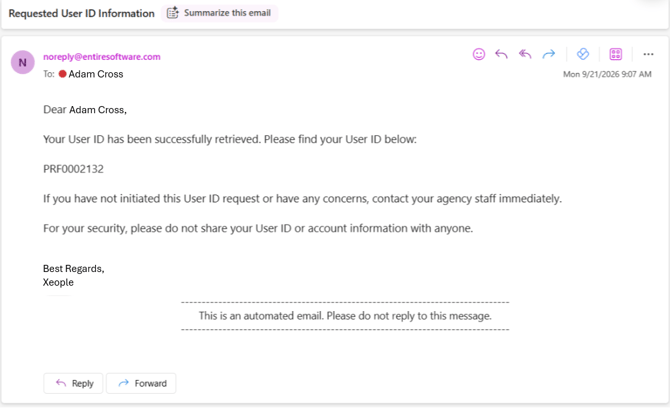
The User ID will be sent to the registered email address as shown in the figure below.
Professional App — Forgot User ID
To recover your User ID:
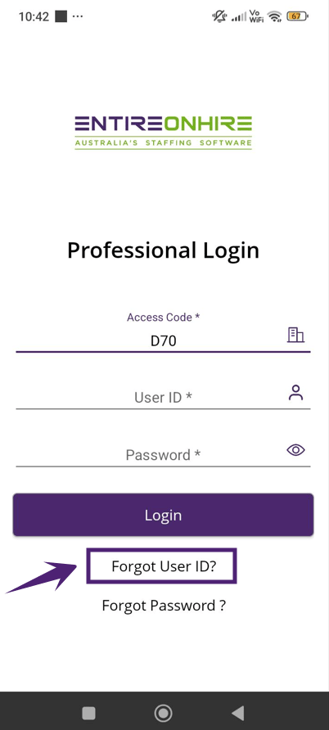
- Click Forgot User ID? on the login screen.
- A Forgot User ID screen appears, prompting you to enter the Access Code and your registered Email Address.
- Enter the Access Code and your registered Email Address.
- Click Send Request.
 |
 |
The User ID will be sent to the registered email address as shown in the figure below.
How to Reset Your Password?
The Forgot Password feature provides a secure way to reset your password. When you initiate a password reset, both you and the administrator receive a notification.
If you forget your password, select the Forgot Password option and verify your identity using your Access Code and User ID. Once your identity is confirmed, you can reset your password and continue accessing the Entire OnHire Apps.
This feature is available in the Member App and Professional App.
Member App — Forgot Password
When you forget your password for the Member App:
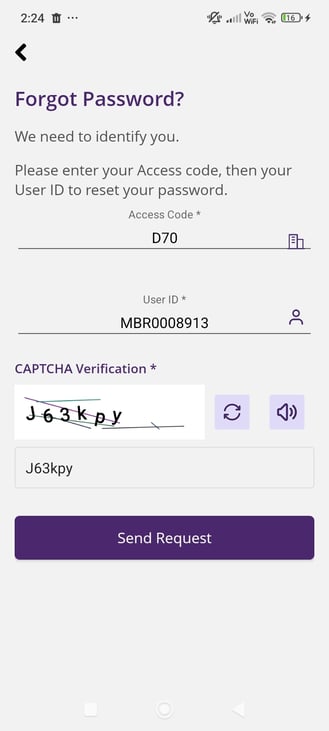
- Click Forgot Password? on the login screen.
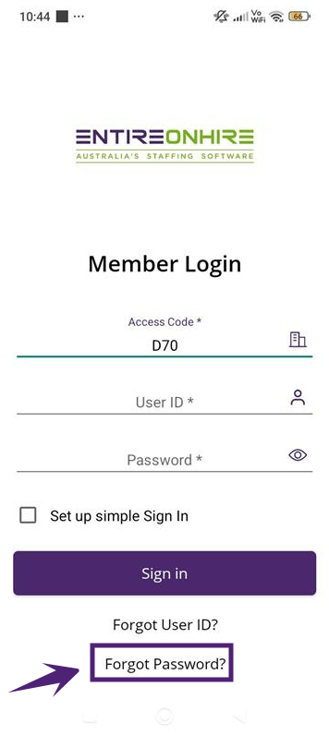
- The Forgot Password? screen appears, prompting you to enter the Access Code and your User ID.
- Enter your Access Code and User ID, and enter the CAPTCHA displayed on the screen. You can use the audio option to hear the CAPTCHA text or click the refresh icon to generate a new CAPTCHA.
- Click Send Request.
After you click the Send Request button, a confirmation message is displayed, and a password reset link is sent to your registered email address.
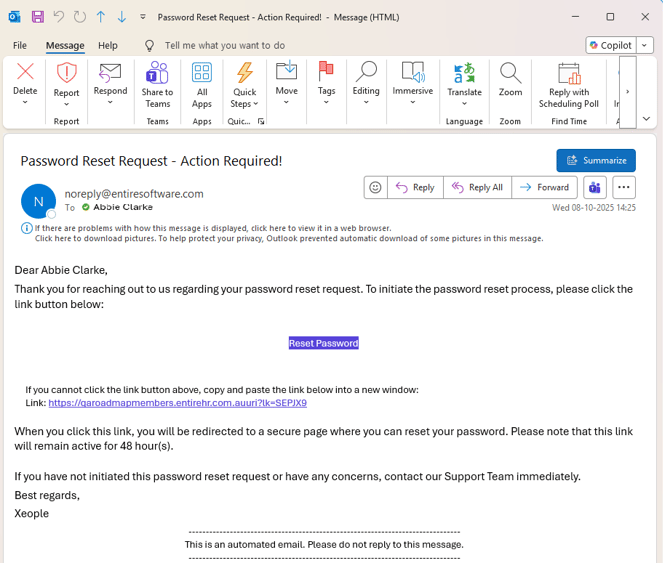
In the Password Reset Request email, click the Reset Password link. You are redirected to a secure page where you can reset your password.
Important Notes:
- The password reset link remains active for a limited time and can only be used once for security purposes.
- The Change User Password feature has been deprecated in the apps. You can now reset your password using the Forgot Password option.
How to Reset Your Password in the Member App?
To reset the password:
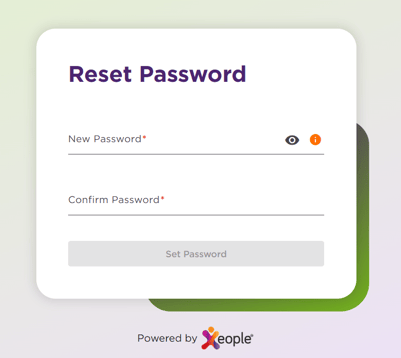
- Provide your New Password and Confirm Password.
- Click Set Password. A confirmation message appears on the screen, and a confirmation email will be sent to verify that your password has been reset successfully.
- You can now log in to the Member App using your new password.
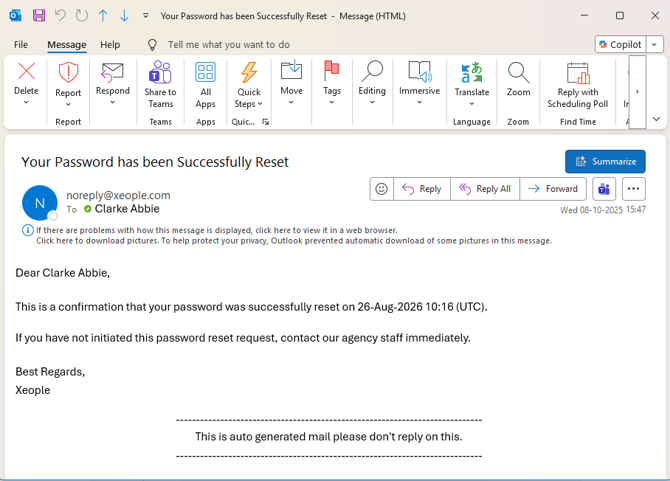
A confirmation email is sent to verify that your password has been reset successfully.
Professional App — Forgot Password
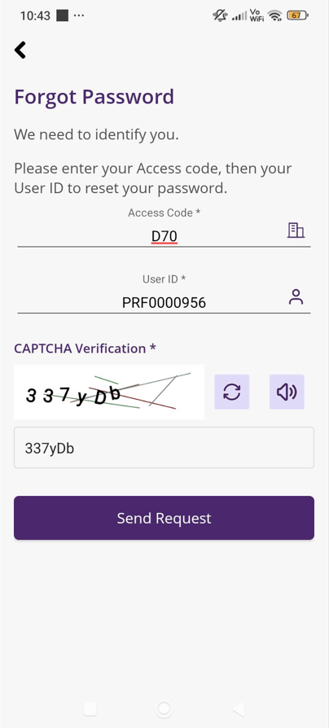
- Click Forgot Password? on the login screen.
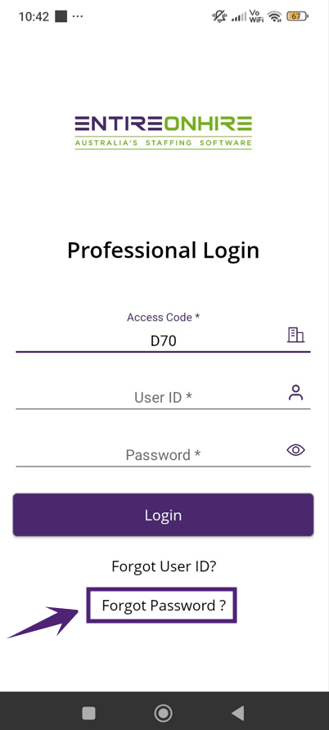
- The Forgot Password? screen appears, prompting you to enter the Access Code and your User ID.
-
Enter your Access Code and User ID, and enter the CAPTCHA displayed on the screen. You can use the audio option to hear the CAPTCHA text or click the refresh icon to generate a new CAPTCHA.
- Click Send Request.
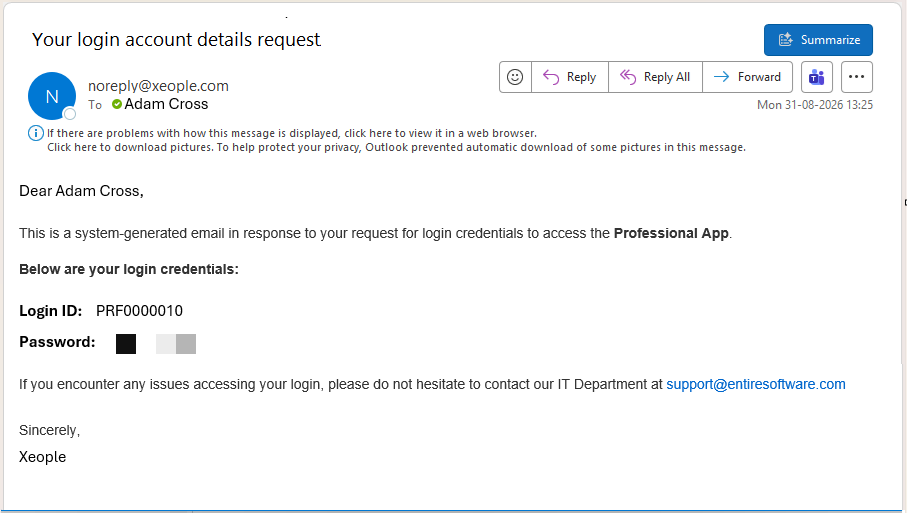
After you click the Send Request button, a confirmation message is displayed, and your login credentials are sent to your registered email address.