Introduction
The Oracle Clients Report displays information on new clients created in the system within a specified date range, based on the selected Client Status and Location Type, in an Oracle-compatible format.
The Oracle Clients Report shows the Office Number, Client Number, Client Department, Client Formal Name, Client Informal Name, Internal Acct, Address, Contact Name, and Telephone Number.
How to Access Oracle Clients Report?
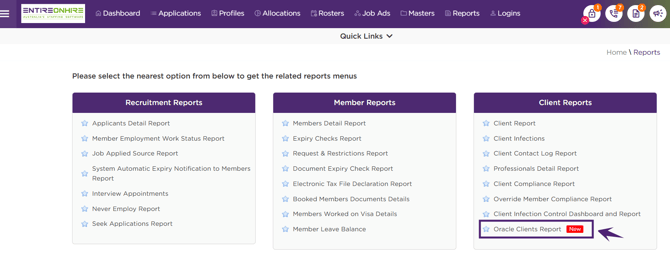
To access the Oracle Clients Report:
-
Click Reports → Client Reports → Oracle Clients Report
 How to Generate this Report?
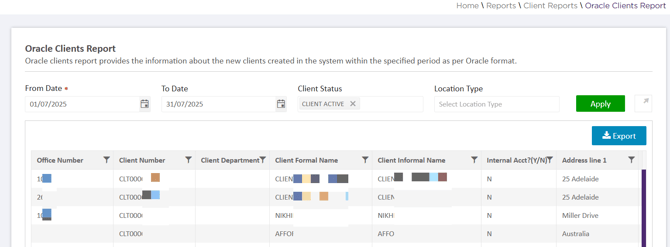
The Oracle Clients Report is generated based on the selected From Date, To Date, Client Status, and Location Type.
In the Oracle Clients Report page:
- Select the From Date of the reporting period. This is the mandatory field
- Select the To Date of the reporting period. Note that if the 'To Date' is not specified, the system will automatically use the current date as the default
- Select the Client Status. The status can be Client Active, Client Future Opportunity, Client Inactive, Client Suspended, and Client Terminated
- Select Location Type. The Location Type can be Admin, Service, Delivery, or Admin and Service
- On clicking Apply, the report will be generated, displaying all clients acquired within the specified date range according to the selected Client Status and Location Type
Sample Figure of the Downloaded Report
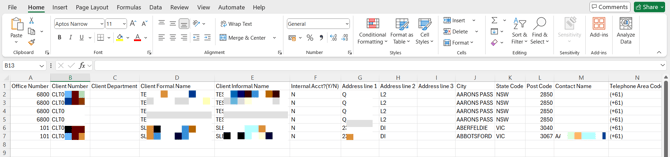
- To export the report in the CSV Format, click Export → CSV
- The Oracle Clients Report is downloaded and exported into CSV format as shown in the figure below
|
Field Name |
Description |
| Office Number |
Shows the office code associated with the client's relationship office. |
| Client Number |
Shows the Client ID. |
| Client Department |
The Client Department will not be displayed. |
| Client Formal Name |
Shows the Client's Name. |
| Client Informal Name |
Shows the Client's Informal Name (if any). |
| Internal Acct? Y/N |
Shows whether the Internal Account is set to Yes (Y) or No (N), with the default value set to 'N'. |
|
Address line 1 |
Shows the Client's Address details. |
|
City |
Shows the Client's Suburb. |
|
State Code |
Shows the Client's State Code. |
|
Post Code |
Shows the Client's Postal Code. |
|
Contact Name |
Shows the professional's name. |
|
Telephone Area Code |
Shows the country code associated with the client's address. |
|
Telephone Number |
Shows the Client's Telephone Number. |
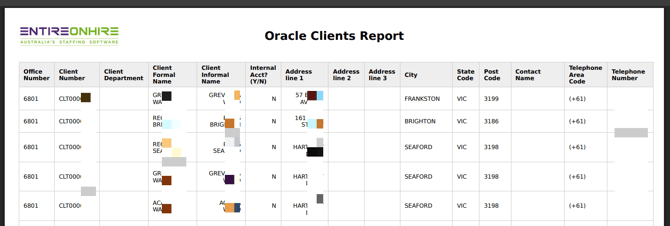
- To export the report in the PDF Format, click Export → PDF
- The Oracle Clients Report is downloaded and exported into PDF format as shown in the figure below