
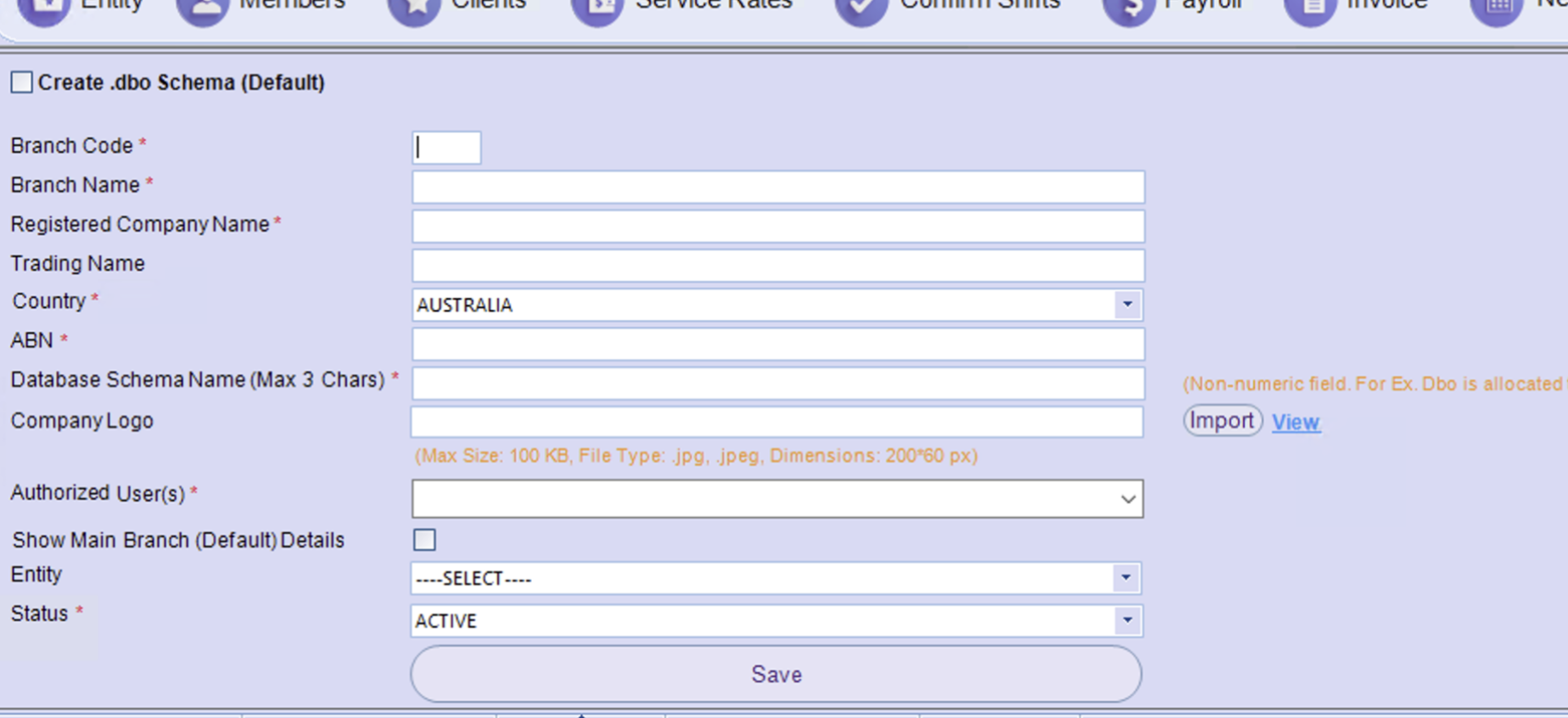
This allows you to set up multiple ABNs for each associated branch of your business.
Switching Billing Information (Entity / ABN Configuration) on Invoices
Overview
Some clients operate more than one billing entity or brand within the same system — for example, separate service lines, ABNs, or company names. Invoices need to reflect the correct entity, so the system lets you switch between billing configurations. Each configuration carries its own details — entity name, ABN, branding and logo — through to every invoice generated while that configuration is active.
Key rules
- Only one billing configuration should be active at a time.
- Always confirm which configuration is active before starting an invoice run.
- Switching the configuration is the responsibility of the team member starting that session.
- Complete a full invoice run for one entity before switching to another.
- Do not mix entities in the same invoice run.
How to switch the billing configuration
- Confirm the entity – identify which entity you're processing today (based on your schedule or the invoices due).
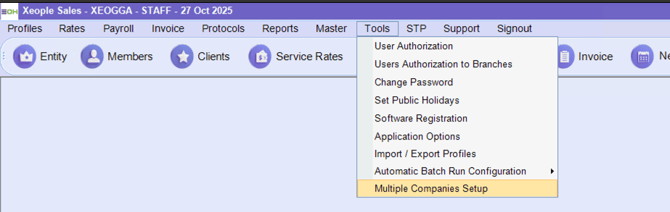
- Open the entity setup – go to Tools > Multiple Companies Setup.
- Select the correct profile – double-click the parent company record so its details load at the top, then update the entity to the required profile (e.g. Entity A or Entity B) and click Save.
- Verify on screen – confirm the entity name, ABN and logo/branding match the entity you intend to invoice before going any further.
- Save and confirm – do not proceed until the correct configuration is confirmed active.
- Process the invoices – complete the full invoice run for that entity.
- Switch if needed – if you need to process another entity the same day, repeat steps 2–5 for that entity.
Please note that regardlesss of the invoice entity on the client card - all invoices will generate based on this entity settings
Payroll note
If payroll is processed under a single ABN regardless of billing entity, the billing configuration switch does not affect payroll — no switching is required for payroll runs, and it doesn't change payroll calculations or disbursements. (Confirm the client's payroll setup, as this varies.)
Keeping invoices separated
The configuration switch is what keeps each entity's invoices correctly separated and branded. Always finish one entity's run before switching, and never mix entities in a single run.
Daily checklist
Before starting an invoice run:
- Confirm which entity is being processed today.
- Switch to the correct entity configuration.
- Verify the correct logo and entity name are displayed.
- Do not commence invoicing until the configuration is confirmed.
After completing an invoice run:
- Confirm all invoices for the entity have been generated.
- If switching to a second entity, repeat the configuration steps.
- Do not leave an incorrect configuration active at the end of the day.