
The Member Super Health dashboard gives you one simple view to track whether your team's superannuation is being processed correctly under SuperReady — so you always know who's covered and who needs a closer look.
Rather than digging through payroll settings or reports, this dashboard brings everything together in one place: who's "Ready" for Payday Super, whose fund details need attention, and where the system may need your help.
This guide explains how to use the dashboard practically, day to day — no technical background required.
Why this dashboard matters
- See your super compliance at a glance — no need to check individual member records one by one.
- Spend less time on manual checks — the system automatically verifies and registers members with their super fund when they update their details.
- Catch issues early — errors are flagged clearly so you can fix them before they affect a payday.
- Stay audit-ready — every status change is logged with a date, time, and reason.
Where to find it
Navigate to: Finance → SuperReady
You can also access an individual member or applicant's super status directly from their Personnel Card → Superannuation tab.
[Screenshot placeholder: Personnel Card – Superannuation tab]
Understanding the summary cards
At the top of the dashboard, four cards give you an instant snapshot:
- Active Members – Ready
- Active Members – Not Ready
- Onboarding Applicants – Ready
- Onboarding Applicants – Not Ready
[Screenshot placeholder: Member Super Health summary cards]
Tip: If your existing members were transitioned to "Ready" as part of your SuperReady setup, you shouldn't expect large numbers appearing in "Not Ready" — this is more useful for monitoring new starters and any changes going forward.
Click any card to filter the list below to just those matching records.
What to check day to day
You don't need to review every record every day. In practice, there are two things worth keeping an eye on:
1. Error statuses (your main action item)
When a member or applicant updates their super fund details — through the Applicant Portal, Workforce App, or Staff Portal — the system automatically:
- Sends a Member Verification Request (MVR) to confirm their details with their super fund, and/or
- Sends a Member Registration Request (MRR) to register them with their default fund.
If either of these comes back with an Error, it means something didn't process correctly — usually a mismatch in the member's details.
What to do:
- Click the Error status to open the processing log.
- Review the response details/error description.
- Correct the relevant information (e.g. fund details, personal details).
- Select the record(s) → Actions → Reprocess MVR/MRR.
[Screenshot placeholder: MVR/MRR error and reprocess action]
2. If you're not using portal/app updates
The automatic MVR/MRR checks are only triggered when super details are updated via the Applicant Portal, Workforce App, or Staff Portal. If your team updates member super details another way (e.g. manually, outside these channels), those changes won't automatically trigger a verification check — so you'll need to manually confirm the details are correct.
Other things you can do from this dashboard
| Task | How |
|---|---|
| Filter by name, status, fund, etc. | Use the Search and column filters |
| View a member's TFN declaration history | Click their TFN Dec to ATO via Flare status |
| Manually mark someone Ready/Not Ready | Select their SuperReady Status → enter a reason → Confirm |
| Update multiple members at once | Select records → Actions → Mark as Ready/Not Ready |
| Export data for reporting | Click Export → Excel |
Quick reference: status meanings
| Status | Meaning |
|---|---|
| Ready | Member/applicant meets requirements for Payday Super processing |
| Not Ready | Member/applicant has not yet met requirements |
| Success (MVR/MRR) | Verified/registered successfully with their fund |
| In Progress | Request submitted, awaiting fund response |
| Error | Something needs your attention — see steps above |
| Blank | Not applicable (e.g. fund is the employer default, or check not required) |
FAQ
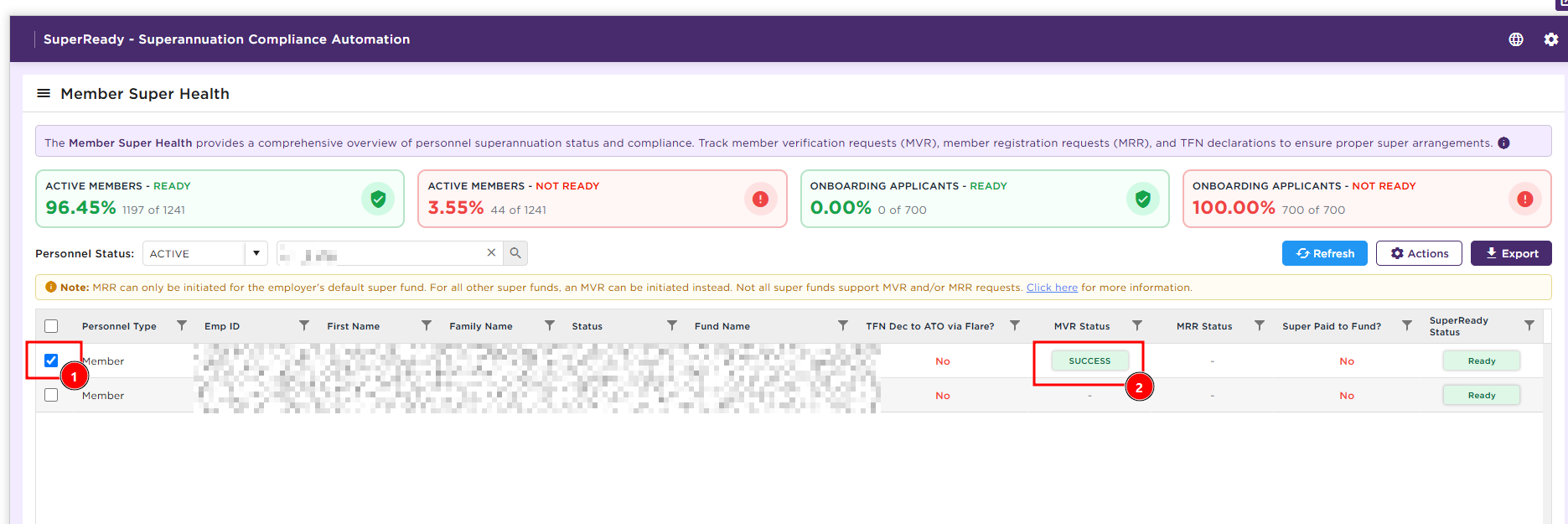
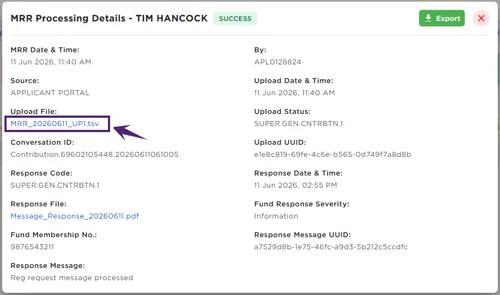
How do I search for a members MVR lodge date and download their .tsv file?
1. Select member and click the MVR success button.
2. Open file
Need a hand?
If you'd like a walkthrough on your own account, or you're seeing errors you're not sure how to resolve, reach out to your Xeople support contact and we'll jump on a call.
Related articles: SuperReady | SuperReady Activation Scenarios and System Behaviour | Staff Portal – SuperReady | Common FAQ's for Stapled Fund Lookups