
The Member Compensate function is used when a member needs to be financially compensated for a shift that was previously booked but later cancelled.
This process ensures that the Finance team is properly informed so the member can be paid without requiring a timesheet.

Allocations – Member Compensate
Only shifts with status Shift Booked or Member Cancelled can be updated to Member Compensate.

Alert Message – Member Compensate
Update Finance Notes
- Select a shift with status with Shift Booked or Member Cancelled.
- Go to Note on the top left and select Fin (finance) Note.

Select Shift – Note – Fin Note
- Enter the correct pay and charge notes in the Finance Notes
- Click Save.
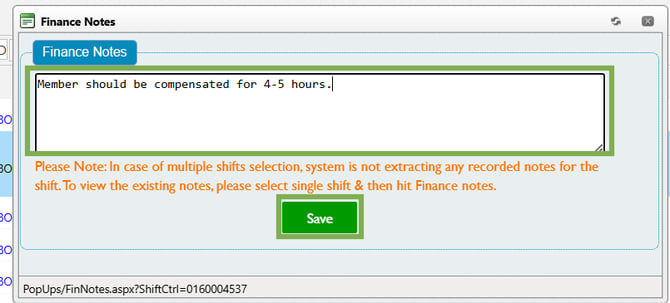
Finance Notes – Add - Save
Update Shift Status
- Select Member Compensate for the status drop-down.
- Click Update Status.
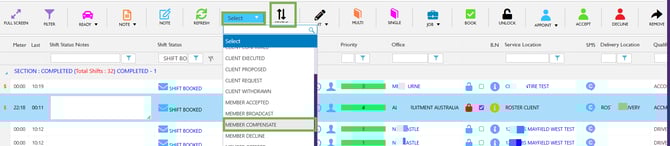
Status Drop-down – Member Compensate – Update
- Select a Professional Name and a reason from the drop-down.
- Click Yes.
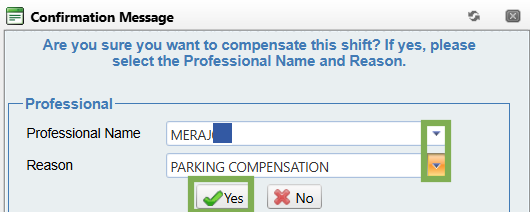
Confirm - Yes
Verify Status Update
- The shift status will now change to Member Compensate.
- Now apply the Member Compensate column filter (kendo filter) on the Shift Status field and scroll to the right.
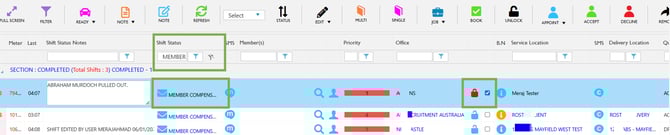
Shift Status Filter – Member Compensate
- Click on the Watch type button/Shift Log.
- The shift log will reflect this update.
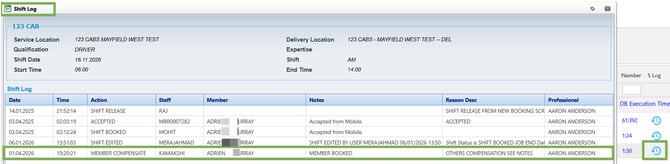
Shift Log – Clock Button
Finance View
We are referring to methods outlined within this article Validating Pay or Invoice Only.
-
Click Confirming Shifts.
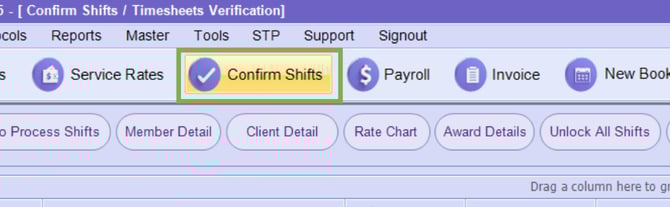
Finance Portal - Confirm Shifts
-
Select the Member’s Name

Member Name
-
The shift will appear there even though it is not in the front end - You can see it is Member Compensate as the status and the allocation notes are in red!
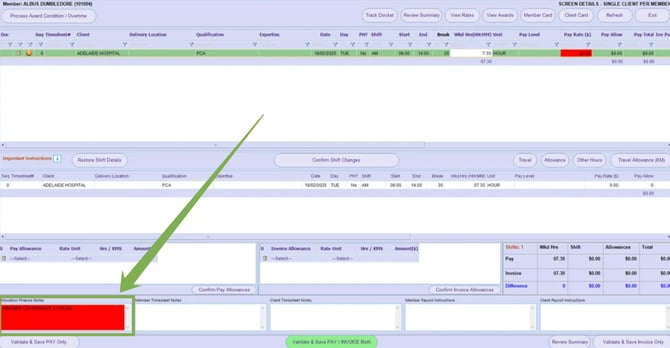
Finance Notes
-
Now you need to update the time in the middle to want the member needs to be paid for.
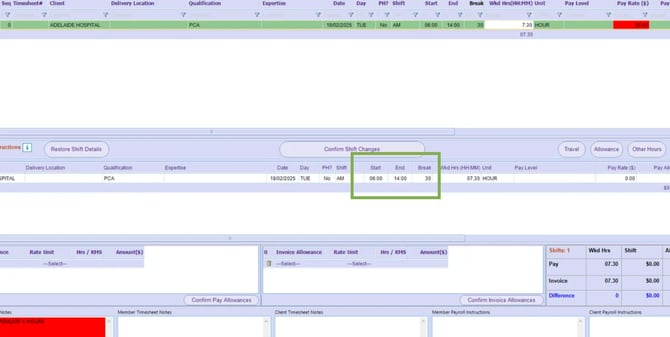
Time - Update
-
Click Validate and Save PAY only.
Validate and Save Pay/Invoice Both
-
Then create New Booking - Adjustment shift - Enter the Same Docket number, adjust the times to state what you need to charge for.
-
Locate the shift - Validate and Save Invoice Only.
Validate and Save Pay/Invoice Both
-
Then Delete the two halves of the shifts.
-
-
Right-click on shift - Permanently Delete Shift.
-