
To upload a document against a location, follow the below steps:
Ensure that the default Category and Document Type are already created before proceeding. Refer to Client Master - Client Documents.
- In the Client section, search for the required client using details such as name or office, and then click Get Details.
- From the search results, select the client profile and choose View and Edit Client Details from the right-hand panel.
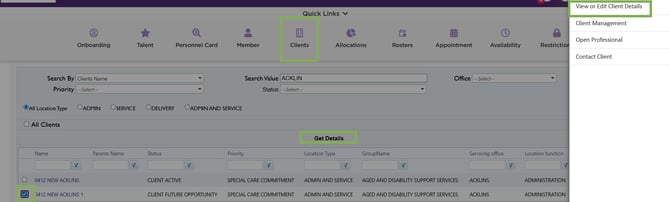
Quick Links - Clients – Search – Select Client – View or Edit
- This action opens the client details page in a new window. Select the Documents tab to continue.
- Select Add New Documents.
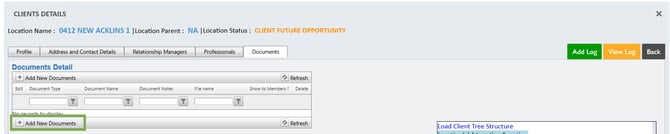
Client Details – Add New Documents
- Select the appropriate Document Type and Document Name from the dropdown lists.
- Enter the required document notes and upload the file from your computer.
- To make the document visible to members through the mobile app and portal, select the Show to Members checkbox.
- Click the green tick icon to save the document.
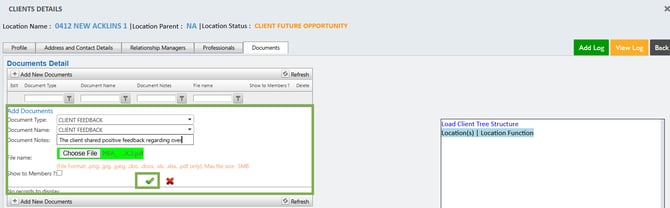
Add Documents – Add Field Information - Yes
- To show the Location documents, enabled the settings under Client Management.
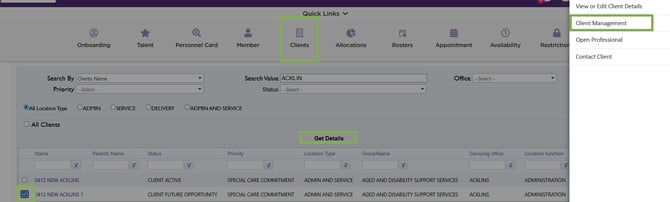
Clients – Search – Select Client – Client Management
- Click Configure Client Interface.
- In the Workforce App tile, click the up-arrow button to expand the settings.
- Enable the Show client location documents to members toggle by setting it to Yes.
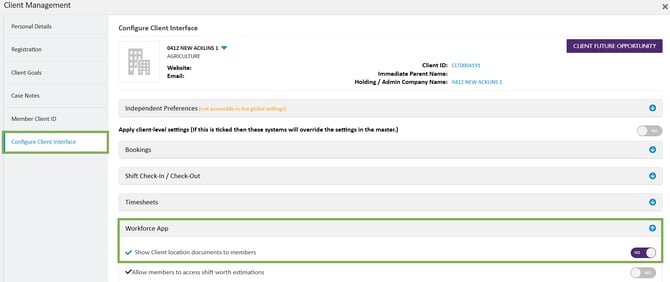
Configure Client Interface – Workforce App – Toggle On
- In the members app, documents are shown under the following icons when they are selected on a shift.
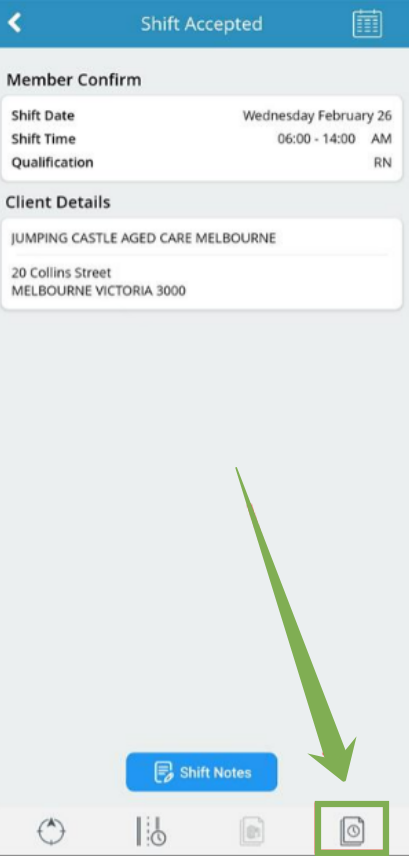
Member App – Document