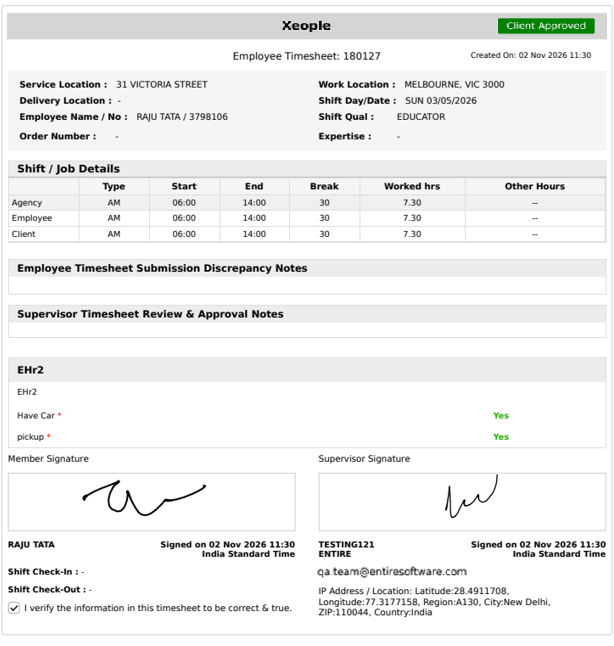
Member App – Responding to Shift Tasks Checklist
When a client assigns a Shift Tasks Checklist, members respond to each task at the end of their shift. How to respond depends on whether the tasks are mandatory or optional:
- Mandatory tasks: Members must respond to all tasks before they can submit their timesheet.
- Optional tasks: Members can submit their timesheet without responding, though responding is encouraged.
How to Respond to Shift Tasks?
- In the member app, open the booked shift.
- On the Shift Booked screen, tap the floating orange Tasks Checklist icon.
The indicator on the top-right of the Tasks Checklist icon shows the status of the assigned Shift Tasks Checklist.
- Review the assigned tasks and select Yes or No for each one.
- Click Done to save your responses and submit your timesheet as usual.
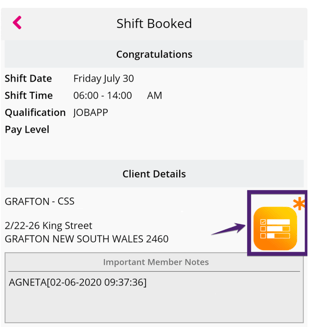

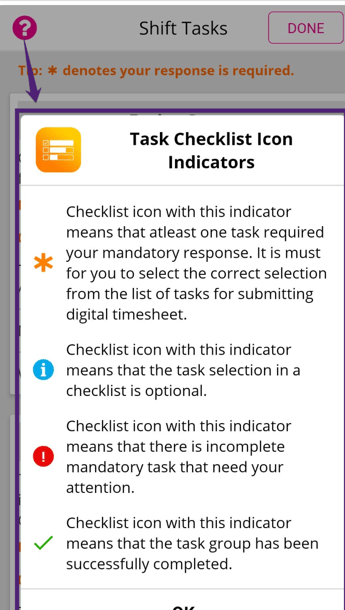
Tasks Checklist Icon Indicators
An indicator on the floating orange Tasks Checklist icon shows the status of the checklist assigned to the member. Members should check it when they open a booked shift to check whether any tasks still need a response.
Tasks can be mandatory or optional, and the indicator changes accordingly.
| Indicator | Meaning |
|---|---|
| Orange asterisk | At least one task requires a response. You must respond to all mandatory tasks before submitting your digital timesheet. |
| Blue info icon | The tasks in this checklist are optional. |
| Red exclamation mark | One or more mandatory tasks are incomplete and need your attention. |
| Green tick | All tasks in this task group are complete. |

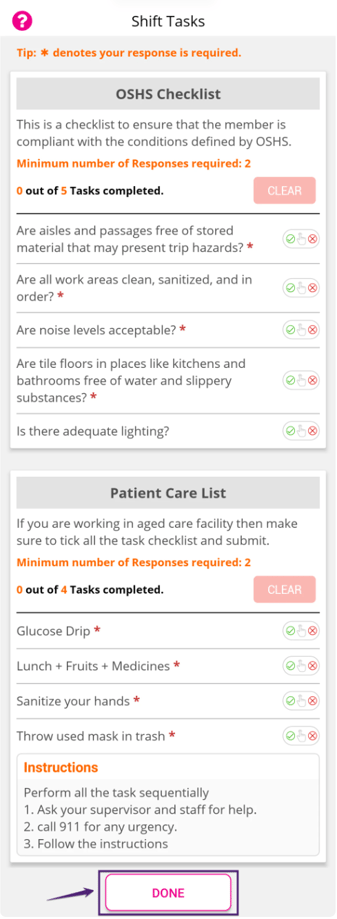
Submit Shift Tasks
On clicking the floating Orange Tasks Checklist icon, the Shift Tasks screen opens. In the Shift Tasks screen:
-
The Shift Task Groups assigned to the member are displayed with the Shift Task Group Name, Group Description, number of tasks assigned, and instructions.
-
Each Shift Task Group can have a Minimum number of Responses required for the member. This implies that members must provide the specified minimum responses.
-
To respond to the Shift Tasks:
-
Members should tap to select the response as ‘Yes’ or ‘No’ for each task.
-
Based on the response provided by the member, ‘0 out of N Tasks Completed’ will be updated.
-
Members must respond to the tasks marked with a red asterisk (*).
-
The member can reset the responses provided for the task group by clicking Clear. On clicking the Clear, a confirmation message is displayed to confirm whether you want to clear the responses for the selected task group.
-
To reset responses for any task in the task group, clear the task response by sliding the required task towards the left of the screen.
-
If the member does not complete the required/mandatory tasks, he will not be able to submit the timesheet, and the Shift Task Submission Alert message will be displayed.
-
Once the required response is provided for the Shift Tasks assigned to the member, click Done.

-
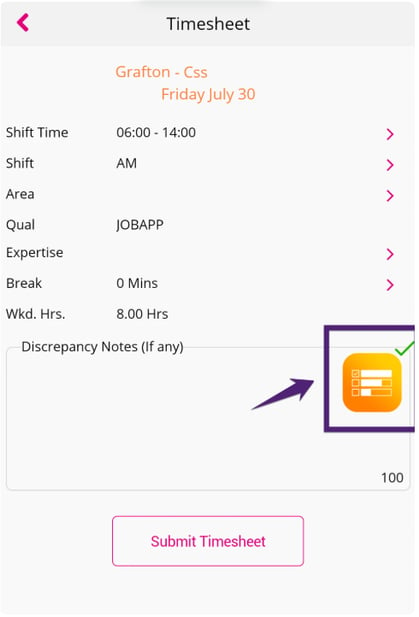
On completing the Shift Tasks Checklist, you will observe that the Task Checklist Icon Indicator will change to indicate that task selection is completed successfully, as shown in the figure below.
Before submitting the timesheet, the member must provide the Location (Area) if the Delivery Location Required: Delivery location is required for Member timesheet submission is set to ‘Yes’ in the Web Generic Settings/ Client Management Settings.
-
Now the timesheet is ready to be submitted.
-
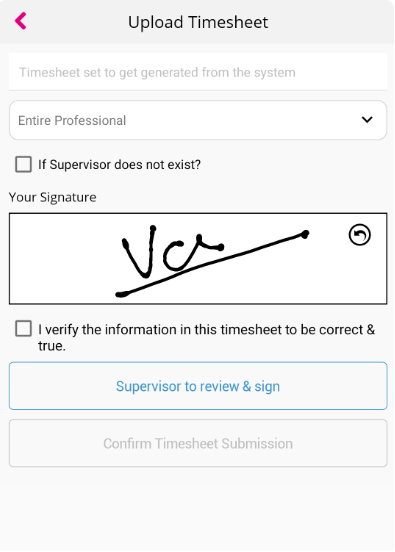
Provide the signature and submit the timesheet for client/supervisor review and approval.
-
If required, provide the Supervisor Signature before ‘Confirm Timesheet Submission’.
The Supervisor will be able to review or view the task group if the
'Supervisor Sign Required: Supervisor sign is required during submission' field is set to ‘Yes’. 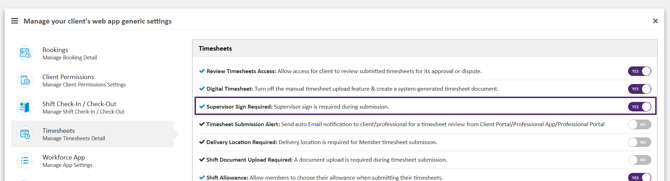
Before submitting the timesheet, ensure to select the ‘I verify the information in this timesheet to be correct & true’ checkbox to enable the Confirm Timesheet Submission else you will not be able to submit the timesheet.

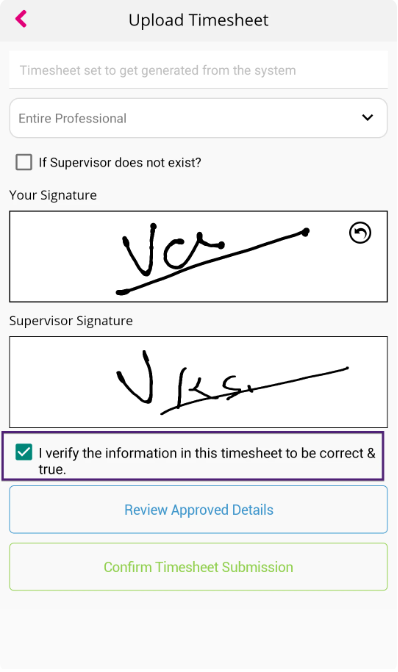
After a member submits their timesheet with the Shift Tasks Checklist, the client can review and approve it.
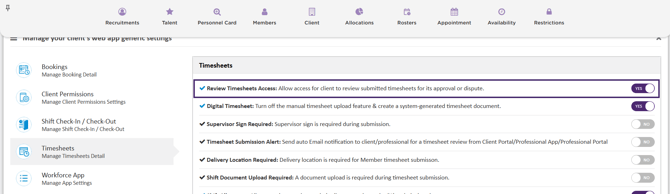
The client must review the member's Shift Tasks if 'Review Timesheets Access: Allow access for client to review submitted timesheets for its approval or dispute' in the Timesheet tab is set to 'Yes' in the Web Generic Settings/ Client Management Settings.
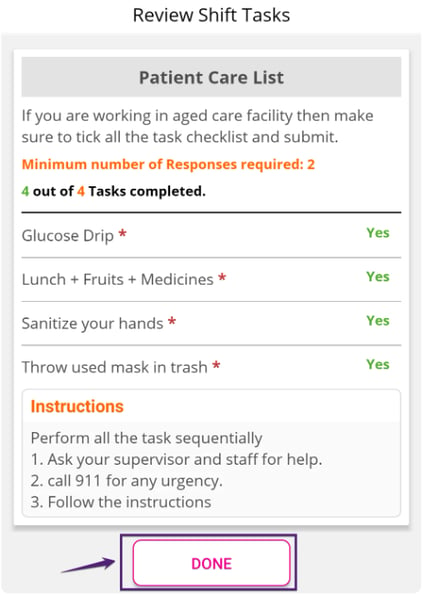
The client must review the Shift Tasks response provided by the member and click Done before approving the member’s timesheet.

Show Responses in Digital Timesheet
To print the member’s Shift Tasks Checklist responses on their submitted timesheet, set the following to 'Yes' in the Timesheet tab of the Web Generic Settings/ Client Management Settings:
Digital Timesheet: Turn off the manual timesheet upload feature & create a system-generated timesheet document
The responses then appear on the submitted timesheet, as shown in the figure below.
The member’s consent statement, I verify the information in this timesheet to be correct & true, is also printed on the submitted timesheet.