
When a member transitions from Full-Time to Casual, any accrued Annual Leave must be paid out before the member's Full-Time leave entitlements are removed, as Casual members are not entitled to Annual Leave.
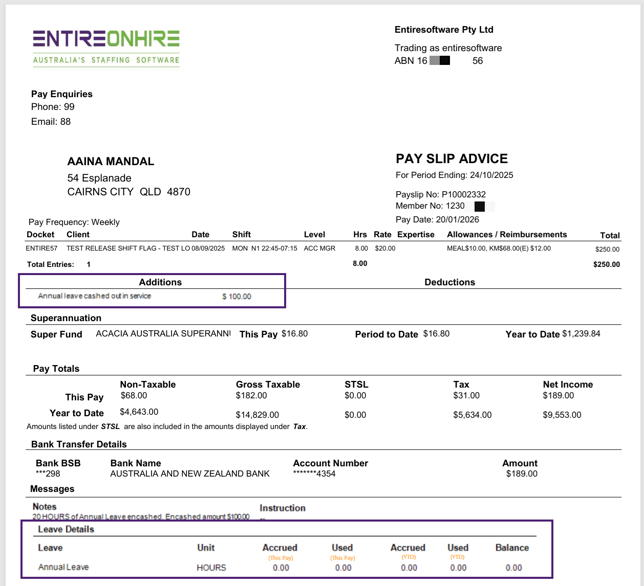
The Annual Leave payout is processed as a Once-Off Addition through the member's pay run. The appropriate STP Type and addition mapping must be configured before processing the leave payment.
Before You Begin
Ensure that:
- The member has an existing Annual Leave entitlement with an accrued leave balance available for payout.
- The appropriate STP type and additions are mapped correctly.
- The applicable leave addition is mapped under Outstanding Pay Details in the Staff Portal.
- The member remains Full Time until the leave payout is processed, so that the existing leave entitlement and accrued balance remain available for the encashment.
1. Process the Payout with the Member's Normal Pay Run
If the member has a normal shift/pay run for the applicable period:
- Enter the leave payout through Outstanding Pay Details under Onboarding/Exit Employee Formalities.
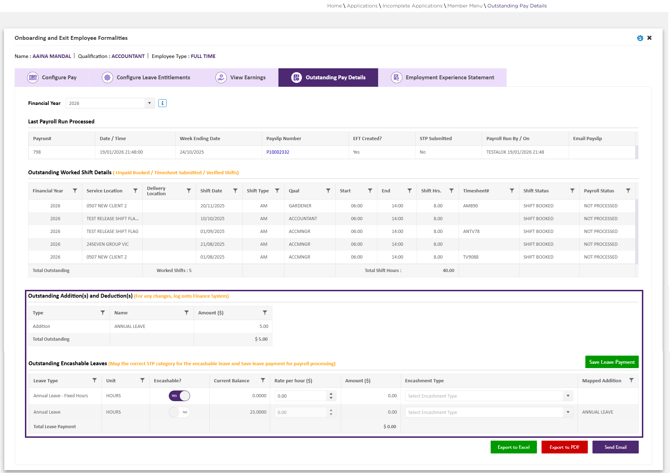
Refer to How to enter Outstanding Addition(s) and Deduction(s) and Outstanding Encashable Leave Details? for more information.
Refer to How to Configure Leave Entitlements? for more information.
- Save the leave encashment. The system creates the required Once-Off Addition, which is included in the member's regular pay run.
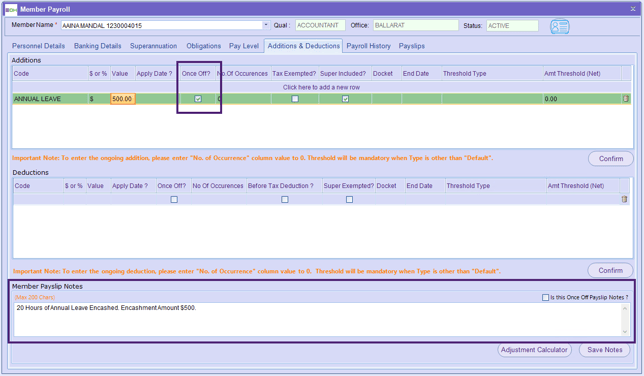
- Complete the applicable pay run to process the leave payout.
2. Process the Payout When the Member Has No Shift
If the member does not have a shift through which the leave payout can be processed:
- Create a 1-Minute Shift: Create a 1-minute shift for the member on a test or admin client. This shift acts as the payroll processing mechanism for the leave payout.
-
Save Encashment Details: In the Outstanding Pay Details tab, select the appropriate rate and leave addition, map the correct STP type, and save the leave payment.
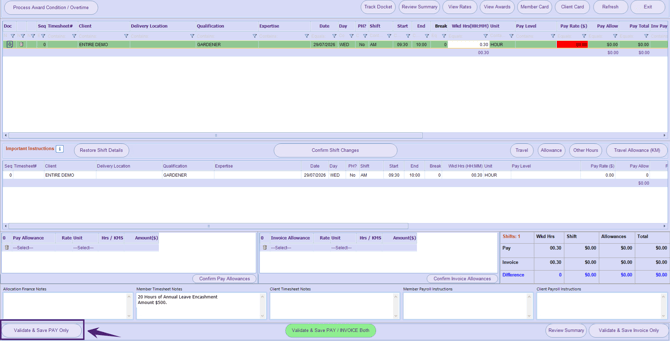
- Confirm as 'Validate & Save PAY Only': In the Confirm Shift screen, select Validate & Save PAY Only for the 1-minute shift. This ensures the shift is processed for the member's pay but is excluded from client invoicing.
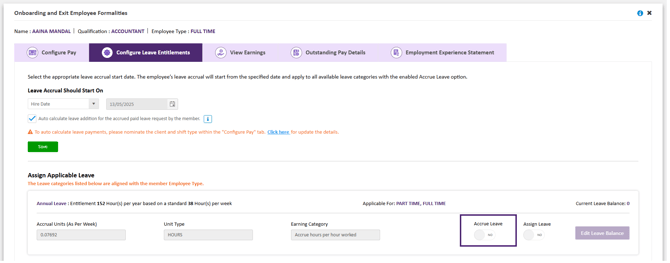
- Disable Leave Accrual: If the member's leave is configured as Hours per hour worked, temporarily turn Accrue Leave to OFF in the member's Leave Details for this pay run. This prevents the 1-minute shift from generating additional leave accrual.
- Verify the Once-Off Addition: Before finalising the pay run, check Once-Off Additions in the Finance Portal to confirm that the leave payout is correctly attached to the member's pay run.
-
Complete the Pay Run: Finalise the pay run as usual.
3. Transition the Member to Casual
After the Annual Leave payout has been processed:
- Confirm that the leave payout has been included in the completed pay run.
- Change the member's employment status from Full Time to Casual.
- Unassign the applicable Full-Time leave types/entitlements from the member's profile.
This ensures that the member's accrued Annual Leave is paid correctly before the member transitions to Casual and the associated Full-Time leave entitlements are removed.
For terminated members, staff must manually calculate and override the tax amount applicable to the Annual Leave cash-out. Ensure the tax is calculated and manually overridden correctly before finalising the pay run.
Refer to the ATO article for detailed guidance on how to calculate the tax: Unused annual leave | Australian Taxation Office