1. Pre‑requisites (Setup)
Before using this process, make sure:
- Sleepover shift type exists
- Confirm the client has a Sleepover (or equivalent) shift type set up in: Masters > Allocation Master > Member Shifts.
If needed, refer to: How to implement sleepover shift types and pay member as an allowance.
Rates are configured
- Confirm the relevant rate table (e.g. NDIS Aug 2025) includes the correct: Sleepover shift type and Linked allowance / rate for sleepover
- This ensures the correct pay and bill rates will apply automatically.
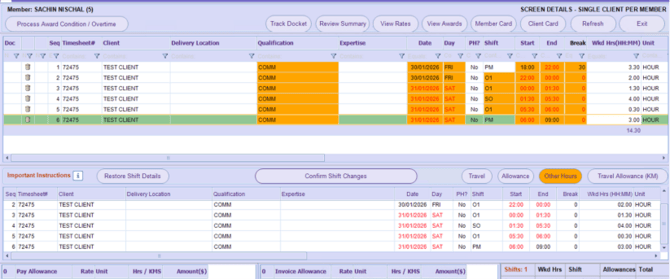
2. Entering a Sleepover Shift (Allocations)
When creating the shift in Allocations:
Create the shift
- Open the relevant client/location.
- Choose the appropriate Sleepover shift type.
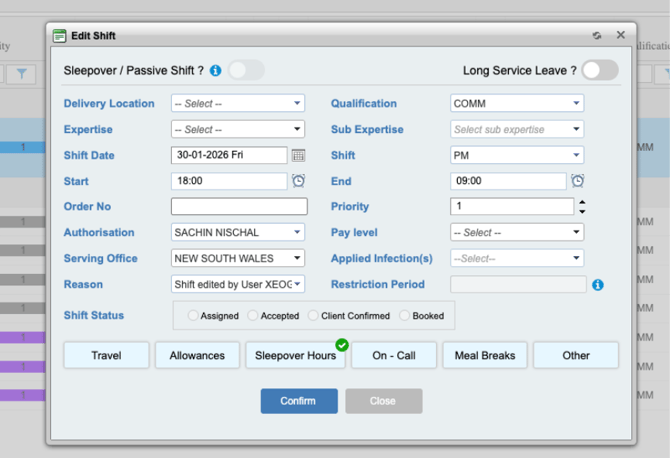
Enter the main shift times
- Set Start Time to the date/time the member arrives (Day 1).
- Set End Time to the date/time the member leaves (the following day).
- This covers the full overnight period.
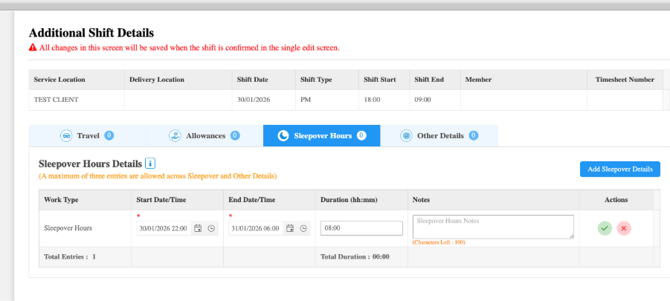
Open Sleepover Details
- Click Sleepover Details (or equivalent button/section).
- Enter the sleepover component (e.g. 8 hours as per the client’s rules).
- Save/update the shift so the sleepover details are stored.
The system now has:
- The full duration of the shift (arrival to departure), and
- The specific sleepover allocation within that timeframe.
Member Submits Timesheets
- The member works the sleepover shift.- Via the Workforce App / portal, the member:
- Views the sleepover shift.
- Submits the timesheet for that shift (including any required confirmation).
- Below attached is how a member submits timesheets.
Finance Portal – Approving Split and Comparison
In the Finance / Payroll view:
- Open the relevant pay period and locate the sleepover shift.- Review the system‑calculated split:
- Check that the sleepover portion (e.g. 8 hours) is split correctly vs any active hours.
- Confirm the correct rate is applied from the NDIS Aug 2025 (or relevant) rate table.

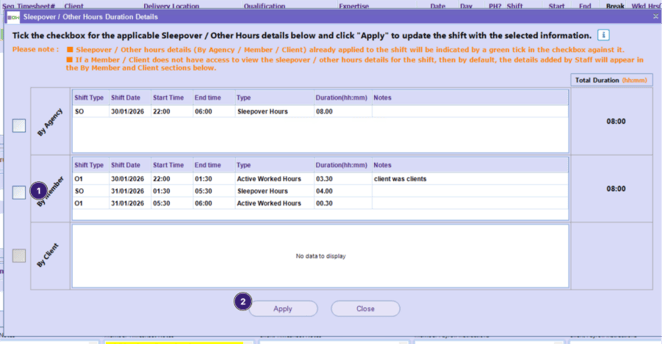
- If correct, approve the shift and proceed with payroll.
- If incorrect, investigate:
- Shift start/end times
- Sleepover details entry
- Rate table configuration (shift type/rate)
The Finance Portal step is where the split and comparison between system rules and entered times are verified before pay is finalised.