
Overview
Entire OnHire allows you to email a client contact directly from a specific shift without leaving the Allocation page. You can send a quick message or use a pre-configured email template to keep communication consistent and professional.
Why email from the shift?
Emailing from the shift keeps all communication tied to the relevant booking. It saves time navigating between the Allocation page and the Client record, and ensures your message has the right context — the client, location, and shift details are already linked.
Steps:
- Open the relevant shift on the Allocation page
- Select the email icon
- Select Email Template
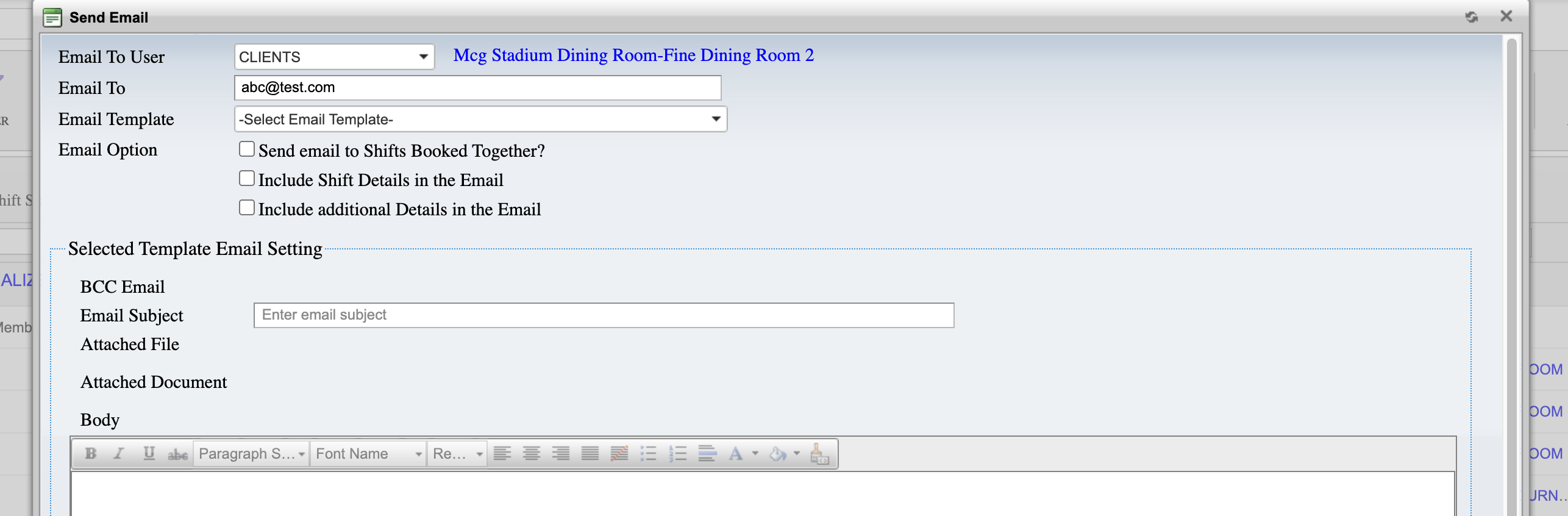
- Compose and send your message
This saves you from having to leave the Allocation page and navigate to the client record just to find an email address.
Using Email Templates
Email templates save time and ensure your client communications stay on-brand and consistent across the team. Rather than typing the same message repeatedly, templates let you select a pre-written message and personalise it as needed before sending.
To use a template:
- After selecting the client recipient, look for the template selector in the email compose window
- Choose the relevant template from the dropdown list
- Review and edit the body as needed before sending — templates are a starting point, not a locked message
Common templates to set up for client shift communications:
- Shift confirmation
- Staff change notification
- Shift cancellation notice
- Care plan acknowledgement request
- Incident follow-up
Tip: If your team doesn't have email templates configured yet, or if the templates available don't match your current workflows, this is worth reviewing. Well-configured templates reduce errors and save significant time across high-volume shift periods.
Setting Up and Managing Email Templates
Email templates are configured at the system level by an administrator. If you need a new template created or an existing one updated, contact your system administrator or refer to the article below.
📄 Related: How to Create and Manage Email Templates in Entire OnHire
Which method should I use?
| Situation | Recommended method |
|---|---|
| One-off message to a client about a specific shift | Email icon → Client on Allocation page |
| Routine communication (confirmations, changes) | Email icon → Client → use a template |
| Bulk client communication not tied to a shift | Client record → Communications tab |
Related Articles
- How to Email a Member from the Allocation Page
- How to Create and Manage Email Templates in Entire OnHire
- How to Upload a Location Document
- Difference Between Location and Shift Document