
Introduction
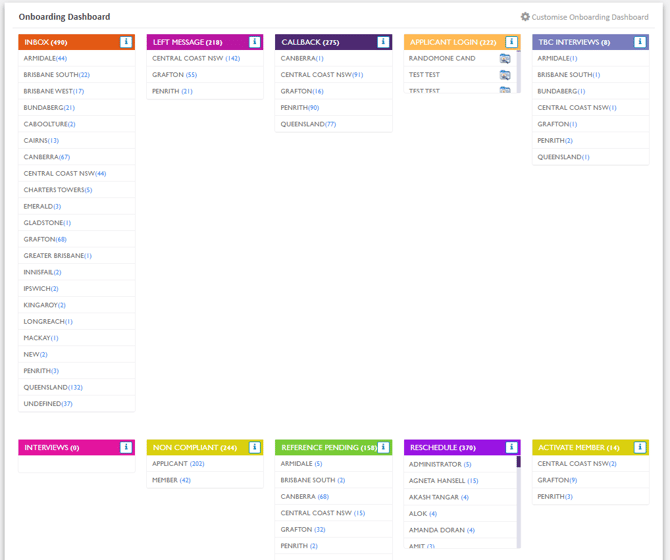
The Customise Onboarding Dashboard feature allows you to create a more engaging and personalised Dashboard. You can customise your Dashboard by changing folder colours, renaming folders, rearranging folders, and hiding folders according to your preferences.
How to Access Customise Onboarding Dashboard?
To access Customise Onboarding Dashboard:
-
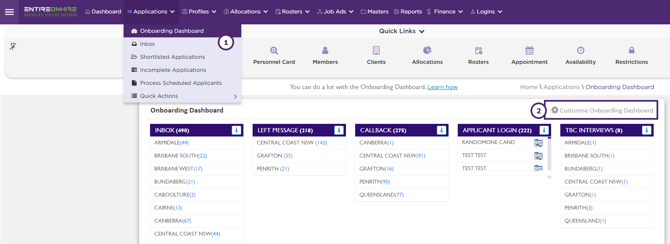
Go to Applications → Onboarding Dashboard.
-
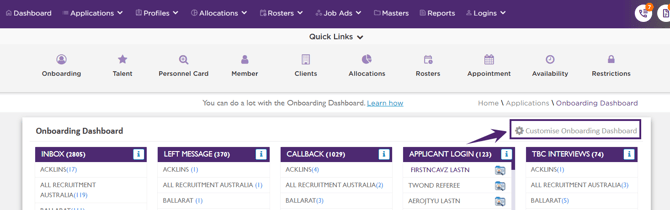
Click Customise Onboarding Dashboard
Colour the folders
You can move beyond the traditional all-blue Dashboard and create a more colourful and personalised one. To can change the colour of any folder:
- Click Customise Onboarding Dashboard
- A list of all folders will open. Click the square icon (shown below) next to the folder you want to colour.
- Choose your favourite colour from the colour palette for each folder.
- Click Update. The changes will be applied to your dashboard.
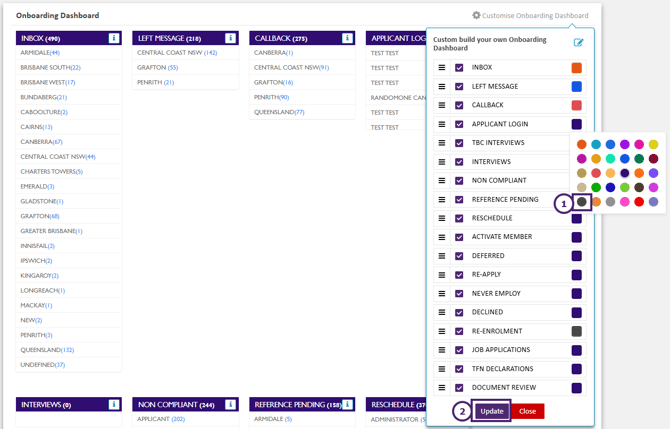
- Click Close to close the pop-up. Your customised Dashboard is now ready to use.
Rename the folders
You can rename folders on your Dashboard to make it more personalised. To rename a folder:
-
Go to Customise Onboarding Dashboard.
-
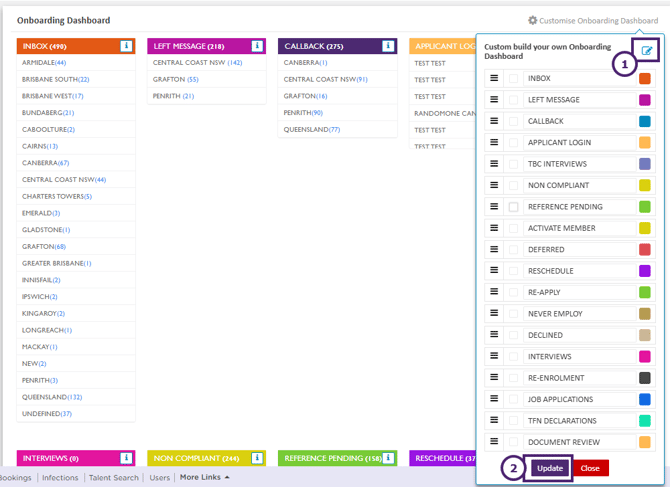
Click the pencil icon. The folder names will appear in editable mode.
-
Rename the folders as required.
-
Click Update. The changes will be applied to your Dashboard.
-
Click Close to close the pop-up.
Rearrange the folders
You can arrange the folders on your Dashboard according to your priorities and preferences. To rearrange the folders:
-
Go to Customise Onboarding Dashboard.
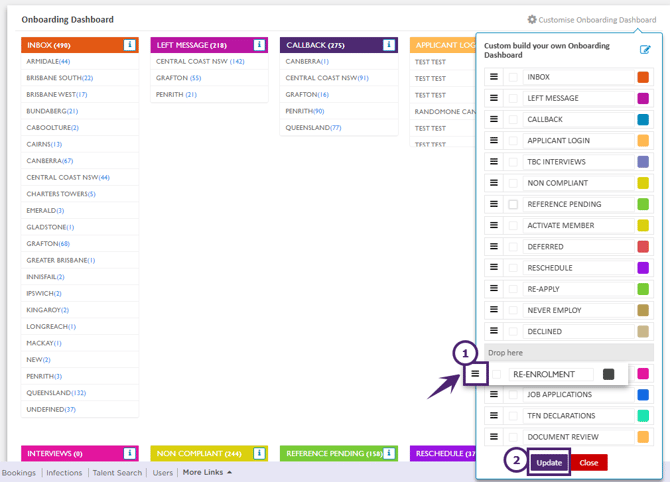
- A list of all folders will open. Click and hold the hamburger icon (shown below) next to the folder you want to move.
- Drag and drop the folder to your preferred position in the list.
- Click Update to save the changes.
- Click Close to close the pop-up.
Hide the folders
You can hide folders that you do not want to see on your Dashboard. To hide a folder:
-
Go to Customise Onboarding Dashboard.
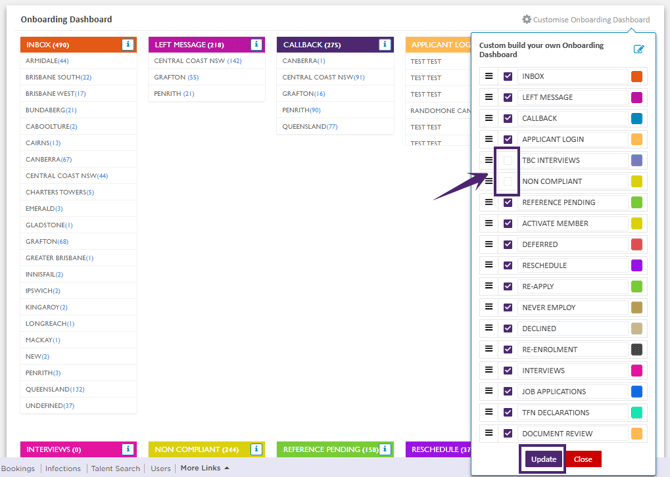
- A list of all folders will open. Select the checkbox next to the folders you want to display and leave the checkbox (shown below) unticked for the folders you want to hide.
- Click Update. The changes will be applied to your Dashboard.
- Click Close to close the pop-up.
Unhide a folder
To unhide a folder, tick the checkbox next to the folder you want to display. All folders with a ticked checkbox will be visible on the Dashboard.
Dashboard Customisation User Specific
The Customise Onboarding Dashboard feature is applicable to every user account. Each user can customise the appearance of their own Dashboard.
For example, Bob may see a different Dashboard when he logs in using his account, while Frank may have a completely different customised Dashboard when he logs in using his account. The Dashboard customisations are associated with the user account, not the person using the system.