📈Staff Portal Enhancements
Content
1. Dashboard Configuration Enhancement
2. New Client Portal: Preferred Personnel Removed from Broadcast Shift Editing
3. Client Allocation: Searches - Improved 'Last Shift' Display
4. Casual Application Page: Mobile Number Consent Description
1. Dashboard Configuration Enhancement
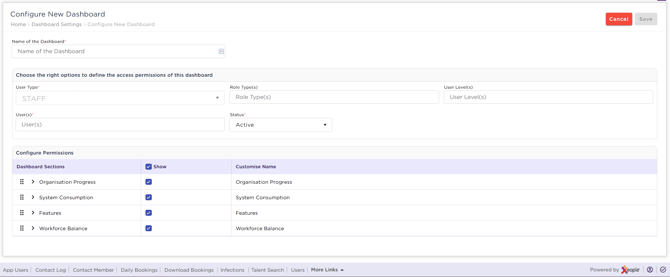
The Dashboard Configuration functionality is enhanced to allow administrators to control dashboard visibility based on User Type, Role Type(s), User Level(s), and selected User(s).
By default, the logged-in user's User Type is displayed and is read-only. Selecting one or more User(s) is mandatory when creating or editing a dashboard configuration.
How is Dashboard Access Controlled?
Dashboard visibility is controlled as follows:
1. User Access
- The dashboard creator will always have access to the dashboard.
- Only the users selected during dashboard configuration can view and access the dashboard. Users who are not included in the configured access list cannot view or access the dashboard.
- When All is selected under User(s), the dashboard is automatically available to all current and future users who match the selected User Type, Role Type(s), and User Level(s) criteria.
- When specific users are selected, only those users (along with the dashboard creator) can access the dashboard.
2. User Status Changes
- User Reactivation/Deactivation
- When a user(s) is deactivated, the dashboard is no longer visible to them.
- When the user(s) is reactivated, dashboard access is automatically restored, provided they continue to meet the configured access criteria.
- Role Type or User Level Changes
- If a user's Role Type(s) or User Level(s) change and no longer match the dashboard configuration, access is automatically removed.
- If the user later matches the configured Role Type(s) or User Level(s) again, access is automatically restored.
3. Multiple Dashboard Assignments
-
A user can be assigned to multiple dashboards, including dashboards with overlapping user configurations.
4. Additional Considerations
- If no users match the selected filters, the message 'No users found' is displayed.
- When All is selected under User(s), any newly created users who satisfy the configured criteria automatically receive dashboard access.
- Dashboard assignment history is retained even when users are deactivated.
- Existing dashboard access rules continue to function correctly after a user is reactivated.
Edit Dashboard
For dashboards that have already been configured:- The Edit option is available from the three-dot menu.
- Selecting Edit allows the administrator/user to modify the existing dashboard configuration.

Dashboard Visibility Rules
| Configuration | Visibility |
|---|---|
| No User Level or Role Type selected | The dashboard is displayed to all users or only the selected users, depending on the User(s) selection. |
| User Level and one or more Role Type(s) selected | The dashboard is displayed only to users who satisfy the selected User Level, Role Type(s), and User(s) criteria. |
2. New Client Portal: Preferred Personnel Removed from
Broadcast Shift Editing
New Implementation
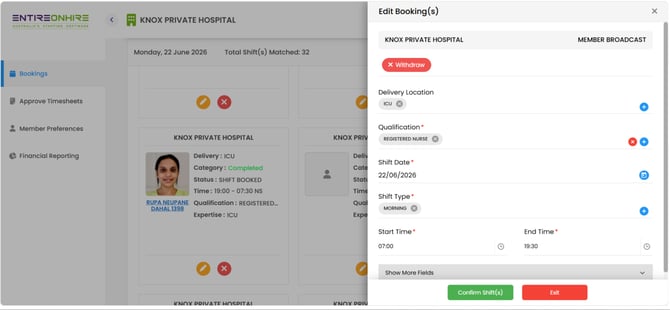
The Preferred Personnel option is no longer available when editing a Broadcast Shift in the New Client Portal. As a result, you cannot search or add additional preferred personnel to a Broadcast Shift, aligning the behaviour with the Staff Portal and ensuring consistent management of Broadcast Shifts.
Existing preferred personnel assigned to the Broadcast Shift can still be removed.
This enhancement applies only to Broadcast Shifts and does not affect any other shift types.
3. Client Allocation: Searches - Improved 'Last Shift' Display
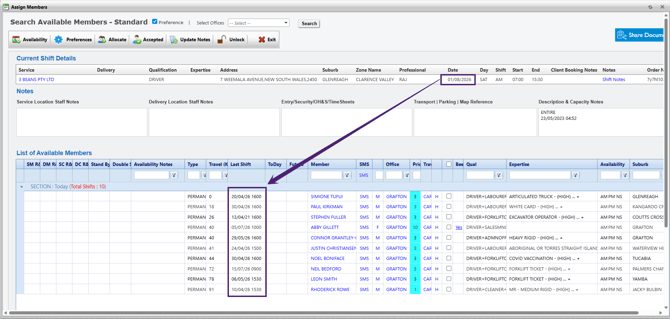
In Client Allocation → Assign Members, the Last Shift column is enhanced to display the member’s most recent assigned shift before the searched shift date.
The Last Shift can be a future shift relative to the current date, which is important for fatigue management and applicable restrictions. However, it must always occur before the searched shift and cannot be after the searched shift date.
The following shift statuses are considered when determining the Last Shift:
- Member Accepted
- Shift Booked
- Client Confirmed
- Timesheet Submitted
For example:
| Search Shift Date | Last Shift Displayed | Eligible Shift Statuses |
|---|---|---|
| 23-07-2026 (Future Date) | Most recent assigned shift before 23-07-2026 | Shift Booked, Member Accepted, Client Confirmed |
| 17-07-2026 (Current Date) | Most recent assigned shift before 17-07-2026 | Shift Booked, Member Accepted, Client Confirmed, Timesheet Submitted |
| 15-07-2026 (Past Date) | Most recent assigned shift before 15-07-2026 | Shift Booked, Member Accepted, Client Confirmed, Timesheet Submitted |
4. Casual Application Page: Mobile Number Consent Description
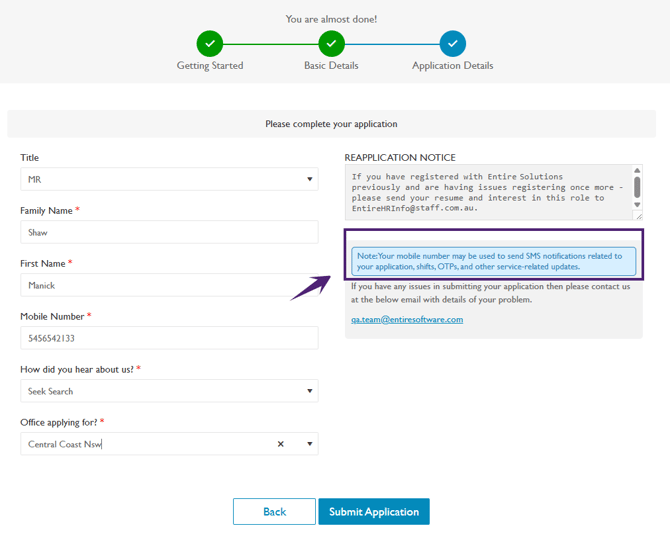
In the Casual Application page, a consent description is added to the Application Details page to highlight the use of the provided mobile number as shown in the figure below. The mobile number will be used to send SMS notifications related to the application, shifts, OTPs, and other service-related updates.