
The Customise Job Application Page feature allows your agency to tailor the online registration form that applicants see when applying for casual work. You can control which fields are shown, which are mandatory, and configure the form differently for each industry your agency operates in — ensuring candidates only see what's relevant to them.
Getting There
Navigate to Masters → Main Masters, then click Customise Job Application Page.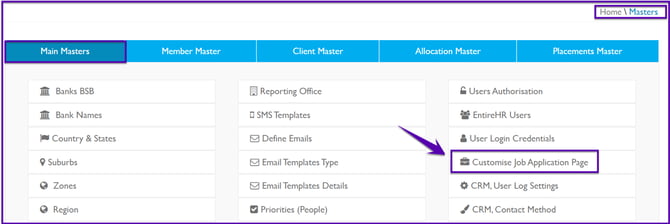
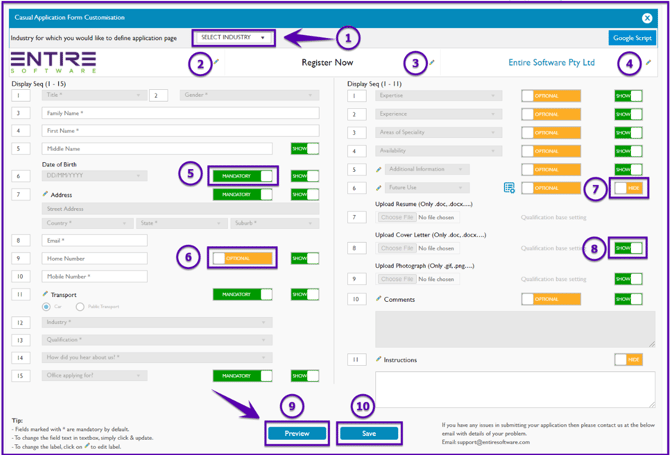
This will open the application page editor, which is split into two panels:
- Left panel — Personal and contact details (Display Seq 1–15)
- Right panel — Professional details, documents, and additional settings (Display Seq 1–11)
Step 1: Select the Industry
At the top of the page, use the "Industry for which you would like to define application page" dropdown to select the relevant industry active in your site.
Each industry can have its own unique configuration. Changes you make are saved per industry, so you can have a different form layout for Education applicants versus Healthcare applicants, for example.
Step 2: Configure the Form Fields
The form is divided into two sections.
Left Panel — Personal Details (Sequence 1–15)
This panel contains the applicant's core personal information. Fields include:
| Seq | Field | Notes |
|---|---|---|
| 1 | Title | Standard salutation (Mr, Ms, Dr, etc.) |
| 2 | Gender | Can be set to Optional or hidden |
| 3 | Family Name | Typically mandatory |
| 4 | First Name | Typically mandatory |
| 5 | Middle Name | Can be shown or hidden |
| 6 | Date of Birth | Can be set to Mandatory |
| 7 | Address | Includes Street, Country, State, Suburb — can be Optional |
| 8 | Mandatory — used for login and communications | |
| 9 | Home Number | Can be Optional |
| 10 | Mobile Number | Typically mandatory |
| 11 | Transport | Can be set to Mandatory; options include Car or Public Transport |
| 12 | Industry | Dropdown — typically mandatory |
| 13 | Qualification | Dropdown — typically mandatory |
| 14 | How did you hear about us? | Source tracking — typically mandatory |
| 15 | Office applying for? | Can be set to Mandatory |
Right Panel — Professional Details (Sequence 1–11)
This panel captures industry-specific and supporting information:
| Seq | Field | Notes |
|---|---|---|
| 1 | Expertise | Can be Optional or shown |
| 2 | Experience | Can be Optional or shown |
| 3 | Areas of Speciality | Can be Optional or shown |
| 4 | Availability | Can be Optional or shown |
| 5 | Additional Information | Custom field — can be Optional |
| 6 | Future Use | Configurable field for specific questions you can dailer |
| 7 | Upload Resume | Accepts .doc, .docx formats; tied to Qualification base setting |
| 8 | Upload Cover Letter | Accepts .doc, .docx formats; can be shown or hidden |
| 9 | Upload Photograph | Accepts .gif, .png formats; tied to Qualification base setting |
| 10 | Comments | Free-text field; can be Optional or shown |
| 11 | Instructions | Custom instructions displayed to the applicant; can be hidden |
Field Controls Explained
Each field row has controls that let you define how it behaves on the application form:
- Mandatory — The applicant cannot submit the form without completing this field. Shown as an orange "MANDATORY" toggle.
- Optional — The field is visible to the applicant but not required. Shown as an orange "OPTIONAL" toggle.
- Show / Hide — Controls whether the field appears on the public-facing form at all. Toggle it on to show, off to hide. Fields set to HIDE will not be visible to applicants.
Tip: Fields without a Mandatory/Optional toggle are always required by the system (e.g. Email, First Name, Family Name) and cannot be made optional.
Step 3: Save the Form
Once you have configured all fields to your requirements, click Save to apply your changes.
Repeat this process for each industry your agency uses — for example, configure one layout for Community and a different one for Education. Each industry's settings are stored independently.

Things to Keep in Mind
- Changes are industry-specific. Updating the Community form will not affect the Healthcare form.
- The Google Script button at the top right of the page is available for advanced scripting configurations — contact support if you need assistance with this.
- If you are unsure which fields to make mandatory, consider your onboarding requirements and the minimum information your consultants need to screen an applicant effectively.
If you’re looking for a fully customised questions and branded application page - Xeople Recruit can control that for you.