
If your organisation works in the health services industry and employs anyone with an AHPRA number, which has a yearly expiry date, you can update these automatically altogether and check for any new conditions attached to their registration.
Please note: This requires an employer AHPRA login to complete - most health orientated agencies will already have one.
-
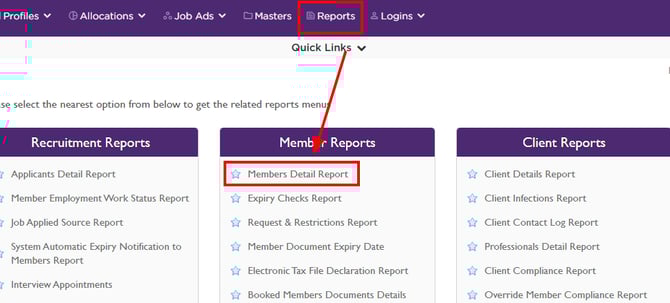
Go to Reports > Member Detail Report
-
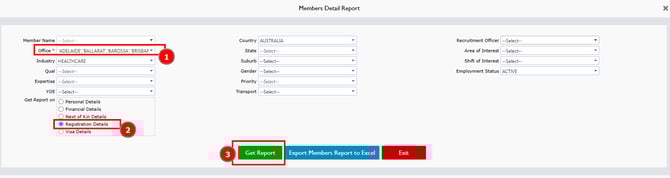
Select Registration Details with all of your office locations ticked
-
Export to an Excel file
-
In the Excel file, remove the additional headings or rows in the report (varies by your company), filtering to just the AHPRA Registration numbers
-
Copy the column of Registration Numbers only and paste into a new NOTE PAD/TXT file and save (NOTEPAD/TXT is required by AHPRA site).
-
Login to your AHPRA Employer Portal
-
From the Home Page Login, Navigate to Registration > Employer Services > Check Employee Registration Status. From here you can upload the Registration Numbers File and submit to AHPRA.
-
AHPRA will then return the file with all numbers in an Excel file with every new expiry date, condition and undertaking associated with each Registration Number
-
Copy and paste the data into file here: AHPRA-Registration-Status V1.0.xlsx
-
Delete the "SAMPLE" excel sheet in this file - this is only to show you the correct format and it will cause an error if you try to upload with this sample sheet.
-
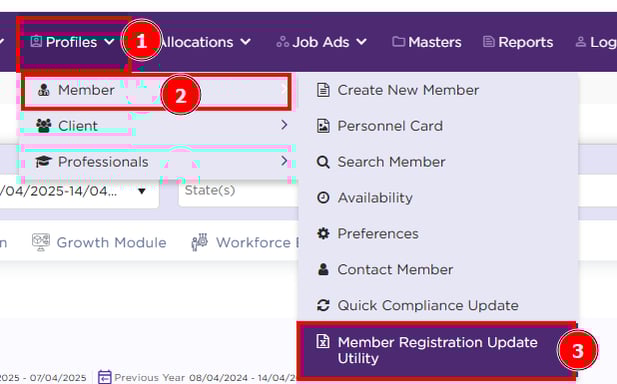
This AHPRA file can then be uploaded in Entire OnHire by going to Profiles>Members>Members Registration Update Utility
-
Once uploaded here the file can be used to update all the AHPRA Registration numbers of your members at the same time.
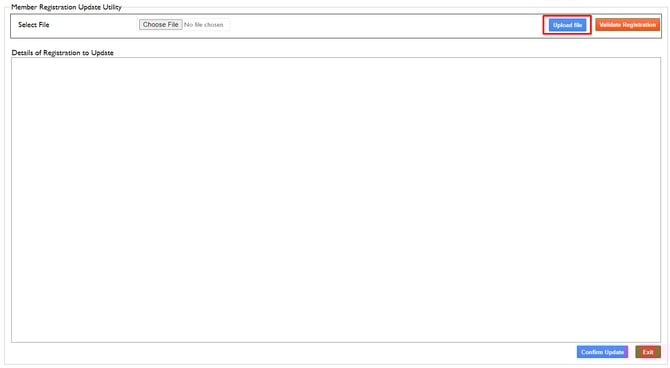
- Upload file in the select file section. Please note that the file that is uploaded needs to be saved as an .xlsx file
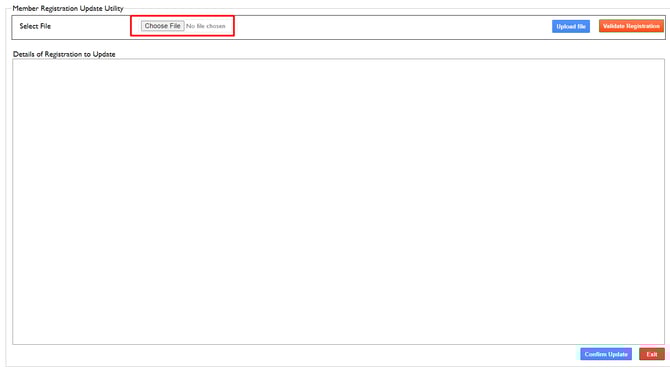
- Click upload file - the APHRA numbers will appear in the box
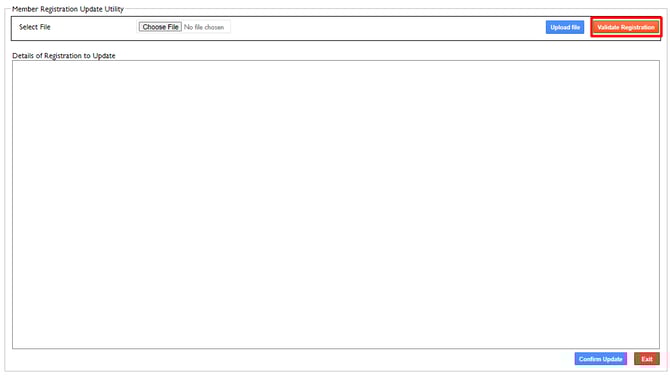
- Validate registration
Once the file gets uploaded, it should look like the following.
Please note everything in Red will not be updated.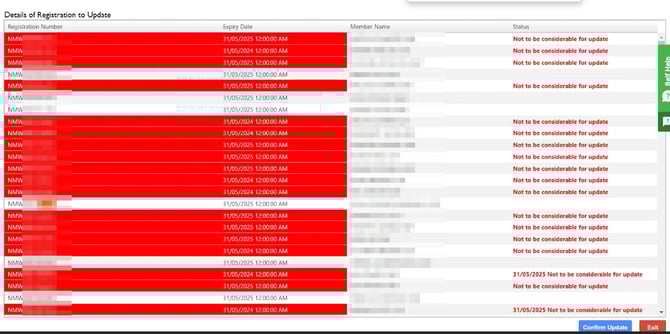
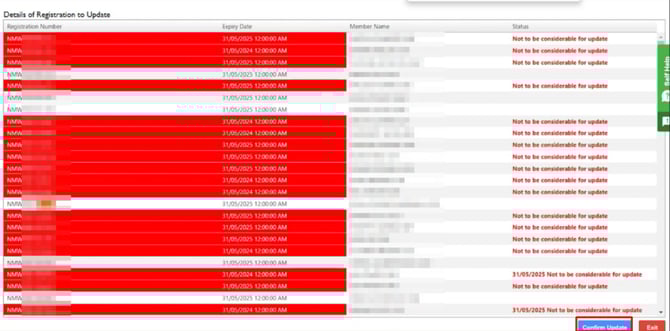
- Confirm Update.
FAQ: AHPRA Auto-Update Not Working for Members with Multiple Qualifications
Question: Why is the AHPRA document not auto-updating for some members?
Answer: This is expected system behaviour. When a member holds multiple qualifications (for example, both RN and RN In Charge), the AHPRA auto-update will not update the date in the Member Document. The auto-update currently only functions correctly for members with a single qualification.
Who does this affect? Any member with two or more qualifications where a document is linked to more than one qualification type. This is commonly seen with clinical staff who hold both a standard RN qualification and an RN In Charge qualification.
What should I do in the meantime? For members with multiple qualifications, the document date will need to be updated manually in the Member Document until this functionality is reviewed by the Product Team.
Is this being fixed? This is a known limitation that has been escalated to the Entire OnHire Product Team for consideration. It is not a bug — it is a current system constraint. Any change to this functionality would require a product decision.
Before raising a support ticket for this issue: Please check whether the affected member has more than one qualification assigned. If they do, this is the expected behaviour described above and does not need to be logged as a development issue.